
Commands
Wherever a command asks for a memory or capsule, you can type its title or its number (#7) — Discord suggests matches as you type. Not sure where to start? Run /help in your server for a private guide with examples.
Preserving memories
How moments get into the archive. Every memory has a title, the story in your own words, a category and the date it happened.
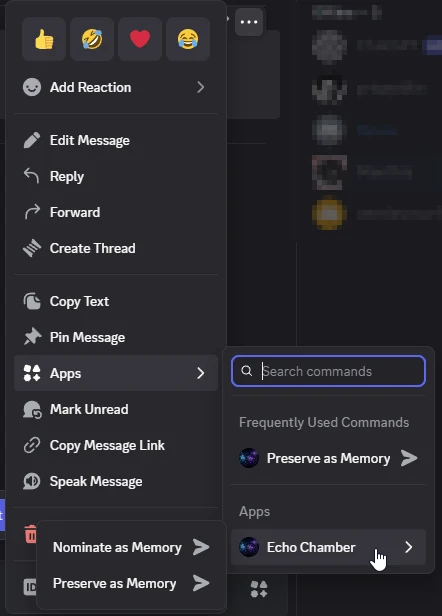
Right-click a message → Apps → Echo Chamber → Preserve as Memory
Turn a message into a memory. The author, channel, date and link to the message are filled in automatically; the message text is pre-filled in the form for you to edit or replace. If the message has a picture, the form asks whether to keep it. The archive keeps what you write, plus a link back to the source.
Right-click the message, open Apps, then Echo Chamber, and pick Preserve as Memory — or Nominate as Memory to let the community decide. Once you've used it, Discord also lists it under Frequently Used Commands for quicker access.
On mobile, long-press the message instead of right-clicking.
/remember [image]
Preserve a memory from scratch — for moments that happened in voice chat, at a meetup, or anywhere else. Attach a picture with image if you like. A form opens where you fill in the title, story, category and date. Under Who can see this?, choose 🔒 Only me to keep it private.
| Categories |
|---|
| 💬 Memorable moment · 😂 Funny moment · 🥔 Inside joke · 🏆 Milestone · 🎉 Event · 🛠️ Community project · 💡 Idea · 💛 Wholesome |
/nominate [image] · Right-click → Apps → Echo Chamber → Nominate as Memory
Propose a moment and let the community decide. A nomination enters the archive once enough members echo it (5 by default — admins can change this in /config). If the server has moderator review switched on, it waits for a moderator's approval first.
/echo <memory>
Say "I remember this" — or take your echo back. The I remember this button on a memory card does the same. Everyone can echo a memory once, so the count is the number of different people who share it. There's no leaderboard.
/memory-link <memory> <other> · /memory-unlink
Connect two memories that belong to the same story, or undo it. Linked memories appear under 🔗 Related on each other's cards. Whoever made the link, the members who preserved either memory, or a moderator can unlink.
/memory-edit <memory> · /memory-delete <memory>
Edit the title, story or category of a memory you preserved, or remove it permanently. Moderators can do this for any public memory.
/memory-image <memory> [image]
Add or replace the picture on a memory you preserved, or remove it by leaving image out. The same people who can edit a memory can change its picture.
- One picture per memory: a JPEG, PNG, WebP or GIF up to 25 MB.
- The bot keeps its own copy, because Discord's links to uploaded files expire. It's shrunk to at most 1920 pixels and re-encoded, which also strips its metadata, such as the GPS location a phone stores in its photos. Animated GIFs are kept as they are, up to 4 MB.
- A private memory's picture is as private as its story.
- Cards already posted in a channel keep showing the picture they were sent with, just like they keep the old text after an edit.
- After you save a memory, the bot looks for similar ones: memories from the same channel within half an hour, or with titles and stories that share words.
- If it finds any, it privately offers to link them, or to fold yours into the existing memory when it's the same moment (yours is removed and you echo theirs).
- Only public memories are checked, and nothing is ever blocked — you can always keep both.
Finding memories
Look something up, browse the whole archive, or follow a story from start to finish.
/memory <memory> [quietly]
Post a memory card in the channel. Add quietly:True to show it only to you — private cards get a Share in channel button in case you change your mind.
Every card has the buttons I remember this, Add recollection (tell your side of the story) and Tell me more (every recollection and everyone who remembers). Linked memories also get 📜 Follow the trail. The buttons keep working, even on old cards.
/memories [sort] [category]
Browse the archive page by page, privately. Sort by Recently added, Most echoed or Oldest first, filter by category, or press 🎲 Surprise me for a random memory.
/memory-search <query>
Search titles, stories and recollections. Word forms match ("potatoes" finds "potato") and partial words work ("karao" finds "karaoke"). The best matches come first.
/memory-trail <memory> [quietly]
Follow a memory's links and see the whole story in the order it happened. The 📜 Follow the trail button on a card does the same. Trails only pass through public memories.
Rediscovering
Bring back the moments nobody has thought about in a while.
/forgotten
Posts an old memory that few people echoed and that hasn't come up in a while. A little piece of server history, dusted off.
/on-this-day
Memories from this date in earlier years, using your server's timezone.
/year-in-echoes [year]
A look back at a year: the most remembered moments, the busiest month, the longest trail, and how many members share the same memories. Defaults to the current year. Everything in it is counted, not written by an AI.
- Once an admin picks a channel in
/config, an Echo of the Day is posted there every day (17:00 in your server's timezone by default). - If a memory has its anniversary today, that one is picked ("Exactly one year ago today…"). Otherwise it's a forgotten memory.
- Memories with a picture are posted with it, as long as the bot has the Attach Files permission in that channel.
Your contributions
See what you've added, take it with you, or remove it.
/my-memories [export] · /my-echoes
/my-memories lists the memories you preserved or nominated, including private ones and their status. /my-echoes lists the memories you've said you remember. Add export to download everything you've contributed to this server as HTML, Markdown or JSON. HTML and JSON include your pictures.
/forget-me
Remove everything you've contributed to this server's archive: memories you preserved (and their pictures), your echoes, your recollections and your time capsule messages. Memories other members preserved from your messages stay, but no longer name you as the author.
/help
A private guide with a page per topic and examples. Command names in it are clickable. Admins also see the settings and moderation topics.
Time capsules
Messages sealed until a future date. Nobody can read them before then — not even their author or the moderators.
/capsule seal <opens> [kind]
Seal a capsule. opens is a date (YYYY-MM-DD) or one of the suggestions, such as the server's next birthday, New Year's Day or one year from today.
| Kind | What it is |
|---|---|
| 📦 Message to the community | A message to everyone, revealed on the opening date. Others can add their own. |
| 🔮 Predictions | Predictions about the future. When it opens, you'll see who was right. |
| 🎯 Challenge | A goal for the community. When it opens, you'll see if you made it. |
| 💌 Letter to my future self | A private letter, delivered to you by DM when it opens. |
/capsule add <capsule>
Put your own message into a community capsule, or edit yours. The ✉️ Add your message button on the sealed card does the same. The card shows who contributed, but never what they wrote.
/capsule list · /capsule mine · /capsule read <capsule>
list shows the capsules that are still sealed or recently opened; mine shows the ones you sealed or added to. read opens a capsule that has already been revealed.
/capsule cancel <capsule>
Destroy a capsule you sealed, unopened.
- At 12:00 on the opening date (in the server's timezone), every message is revealed in the channel where the capsule was sealed. Contributors get a ping, and the original card switches to "opened".
- If the bot can't post there anymore, it tries the Daily Echo channel, then the server's system channel — and if none work, it lets the contributors know by DM.
- Letters to your future self arrive by DM. If your DMs are closed, you get a mention in the channel instead (without the letter) and can read it with
/capsule read.
Settings
Requires the Manage Server permission.
/configManage Server
One settings panel, only visible to you, with the current value shown in every control. Changes save immediately.
| Setting | What it does |
|---|---|
| Daily Echo channel | Where the Echo of the Day is posted. Picking a channel also switches it on; the bot checks it can post there. |
| Daily Echo time | The hour it's posted, in the server's timezone (default 17:00). |
| Nomination threshold | How many echoes a nomination needs to enter the archive (default 5). |
| Timezone | Common zones in the list; 🌍 Other timezone… accepts any zone, such as Asia/Kathmandu. The Daily Echo, anniversaries, memory dates, capsule openings and exports follow it. Default UTC. |
| Daily Echo: On/Off | Switch it on or off without losing the channel and time. |
| Moderator review: On/Off | Nominations that reach the threshold wait for approval instead of entering the archive right away. |
| 📣 Post one now | Post a Daily Echo right away to try it out. The daily schedule isn't affected. |
Moderators
The /echo-admin commands require the Manage Server permission.
/echo-admin queue · approve · hide · restoreManage Server
queue lists the nominations waiting for approval (when moderator review is on). approve preserves a nomination in the archive. hide removes a memory from view — it isn't deleted, and restore brings it back.
/echo-admin export [format] [year]Manage Server
Download the archive as a timeline, including the Year in Echoes numbers:
- HTML — a standalone page to look at or share.
- Markdown — to paste into a wiki.
- JSON — a full backup.
HTML and JSON exports include the pictures, unless that would make the file too big for Discord — then they're left out and the bot tells you.
Exports only contain public, archived memories and opened community capsules — never private or hidden memories, or anything still sealed.
/echo-admin capsule-open <capsule>Manage Server
Open a time capsule early, for testing or special occasions. Works on community capsules and on your own letters — never on other members' letters.
/echo-admin delete-archiveAdministrator
Permanently delete everything stored for this server: memories, capsules (even sealed ones) and settings. Administrators only, with a confirmation step. This cannot be undone.
Questions? Ask in our Community Server, read the FAQ — or just run /help in yours.